
RSView32 Tag DataBase
Tag Database Configuration
Once we have seen how to configure the channels Channel Configuration in RSView32 or Node Configuration with OPC Server for the configuration of a Data Source, we can now create Device Tags. Memory Tags are internal Tags that do not require the configuration of any Device; these are the two types of Tags we can have, and we will see an example of each.
By default, there are certain internal Tags that are already created and are in the System directory.
The first step is to run the Tag Database, and this is the configuration window.

First of all, we are going to create a Tag of the type Memory (Internal Tag and Global to the entire application); first, we define the name we want to assign, then we specify the type of data, whether it is (Analog, Digital, String) these are the three available types. By default, Security comes without any level (*); if we want to assign some type of security, we will specify according to the needs. For help, there is the following practice of User Administration and Security.

We will name it InternalTag of type Analog, without security. Once we have defined that it is of Analog Type, we can specify in Data Type if it is really analog, integer, or according to the available types and our needs.
We define the Minimum and Maximum for the value that our Tag can acquire, scale type, which by default is set to 1, as well as the offset is set to 0. If we want to initialize our variable to a specific value at the start of the application, we do it in Initial Value. With these steps, we have defined our Internal Tag, we accept and we can create the next one...

In the second case, we are going to define a Tag of the type Device; here are included the possible nodes that we have defined in the channels, OPC Server, or DDE Server; for this case, we are going to use the RSLinx OPC Server.
First of all, we assign the name that interests us, data type, security if necessary, and the description. Once the Device RadioButton is selected, we can search for our node, but previously we have to assign the Scan Class if it has been configured.
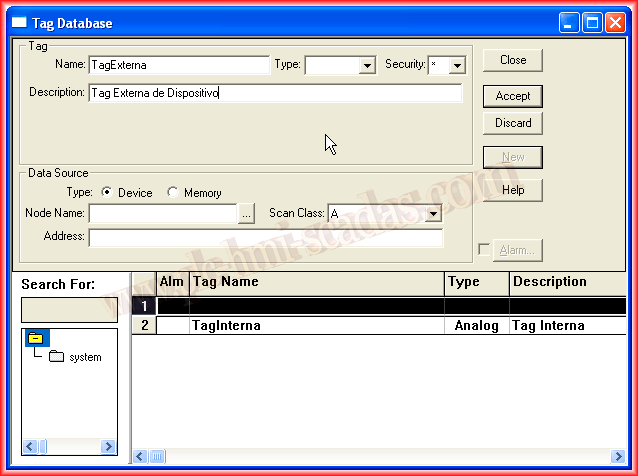

Once we have selected the Node, we can now search for the Tag that interests us and is in accordance with the data type we have defined.

Once we have selected the Tag within the directory of available tags, we can accept and our Tag will be defined; once it is defined, we cannot change certain properties.


August 4, 2013