
Simatic Logon Configuration with Active Directory
Simatic Logon Configuration with Active Directory
As the title suggests, we are going to configure Simatic Logon to work within a Domain. On one side, we have a PC that is the Domain Controller, where all the Devices within the Domain are centralized, and on the other side, the User Groups and Users, greatly simplifying the work scenario.
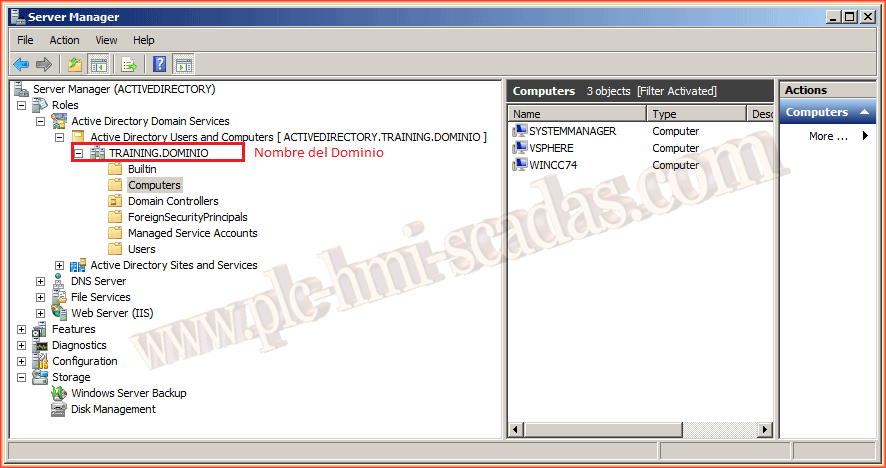
The following two images show the Domain Controller, this PC is called ActiveDirectory and the Domain is named Training. We also observe that there are three devices that are part of it. The PC of interest is WINCC74, where WinCC and Simatic Logon are installed. We assume with the next image that we have already changed the Device and it is now part of a domain and not in a Workgroup; that would be the first step.
The next step would be to create all the User Groups that we are interested in, as well as the Users; for the example, I have created two Groups, one for Administrators and another for Users.

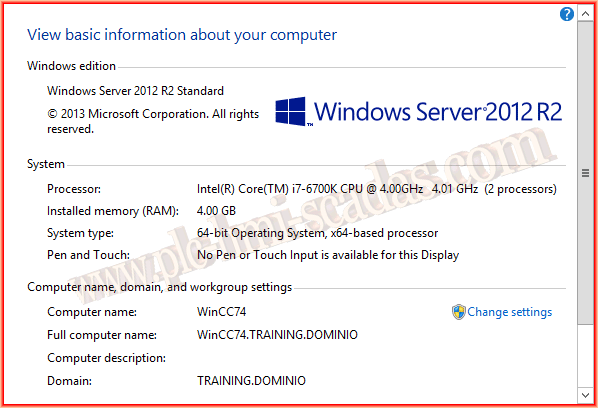
Now we will move to the Device where WinCC and Simatic Logon are located.
As we can see, it is already part of the Domain, as mentioned in the previous paragraph.
On the PC WINCC74, we can log in as a Local User or as a Domain User. We will log in as a Domain User and as a Domain Administrator; the reason for this is that we need to make a series of changes.
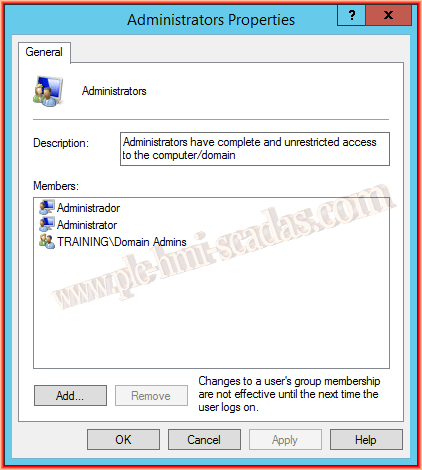
As we can see in the following image, in the Administrator Group, by default, upon joining the Domain, the TRAINING\Domain Admins Group is added, meaning all Administrators will have the rights to make all necessary changes.
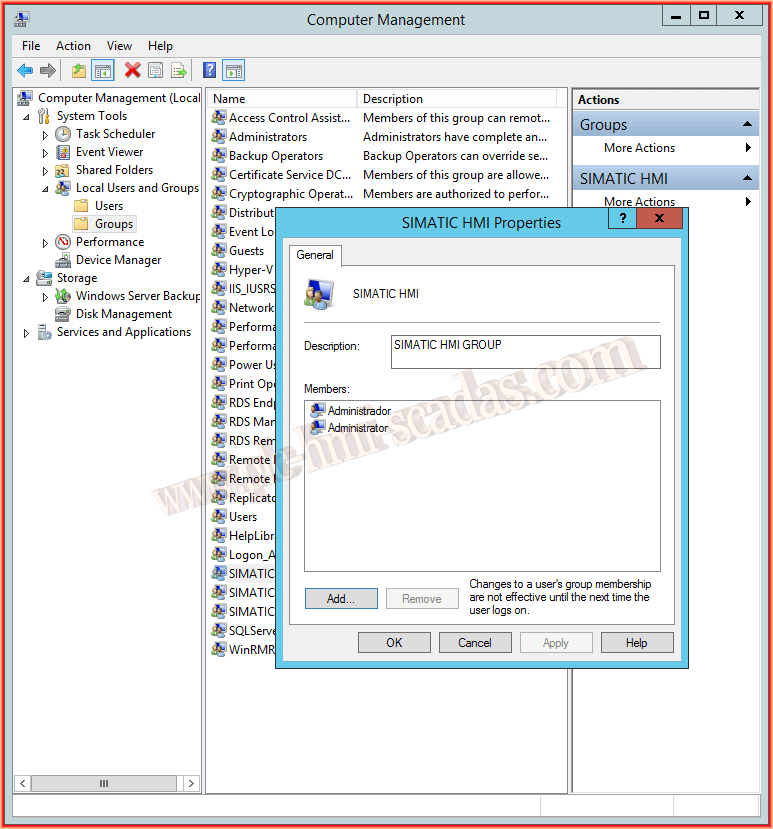
By default, when WinCC is installed, a series of User Groups are created:
SIMATIC HMI
SIMATIC HMI CS
SIMATIC HMI VIEWER

Before making any changes, I tried to start WinCC and the following pop-up window automatically appears, where the message is very clear...
We do not have permissions; that is the reason for the changes we are going to make.
I have also added the following image; I logged in with a user who is not a Domain Administrator, and when I tried to make modifications, it asked for the Administrator's credentials.
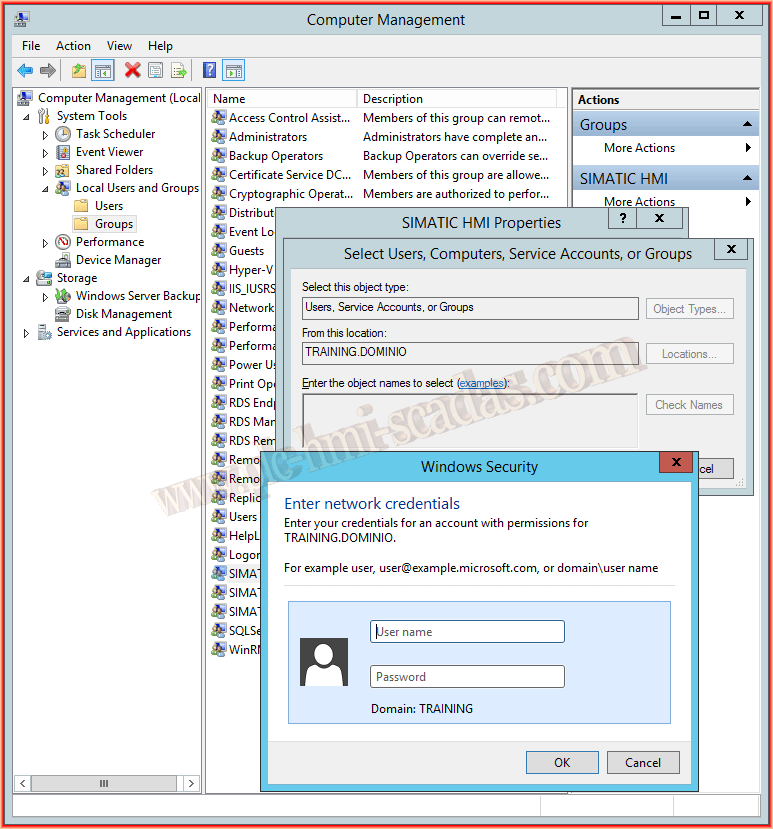
Once those points are clarified, what we need to do in the mentioned groups is to add the User Groups we have created in the Domain; it goes without saying that within these Groups are the created Users.
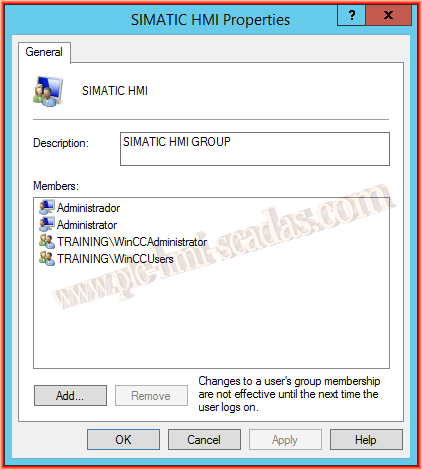
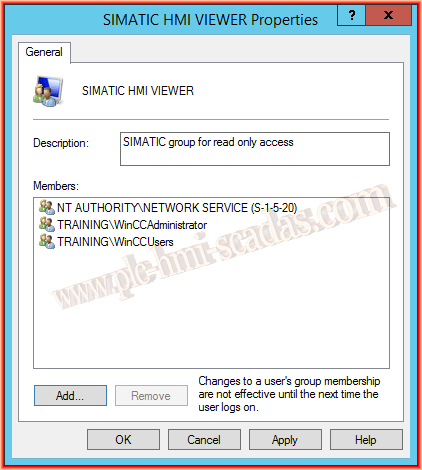
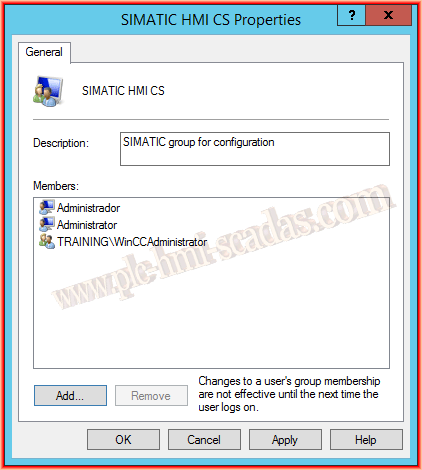
As we have also mentioned, we had Simatic Logon installed on the same PC. We will also clarify that when Simatic Logon is installed, a User Group called Logon_Administrator is created, and to manage the Logon, we must be members of this Group.
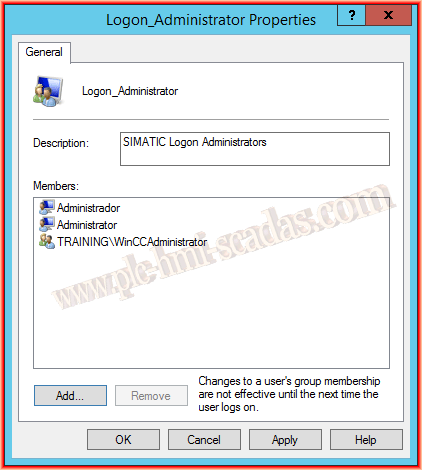
Therefore, in this User Group, we will also add our WinCCAdministrator Group.
With these steps, we have completed the changes we need to make.
Here you can also find some very important details about Simatic Logon
Now we can start WinCC and go to User Administrator.
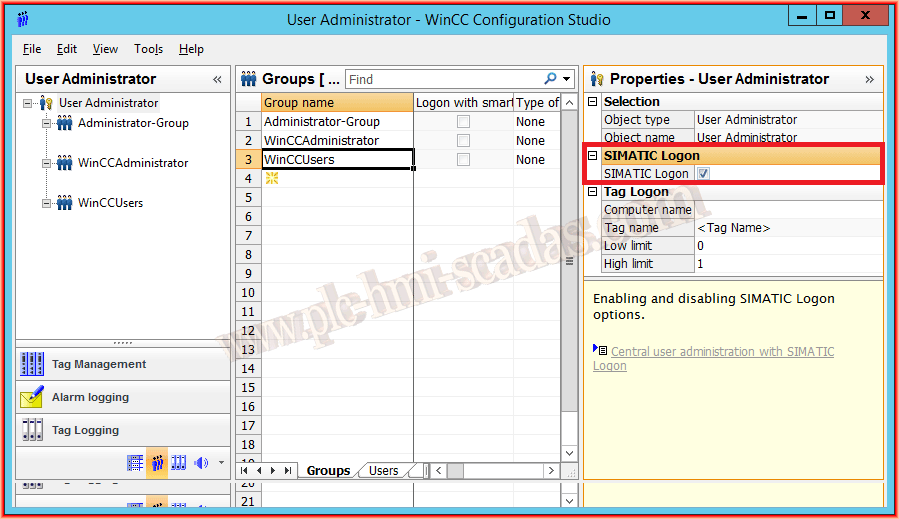
Here it is very easy what we need to do; we have to create the same User Groups that we created in the Domain.
Once this is done, we select User Administrator and check the CheckBox that refers to SIMATIC Logon as shown in the following image.
NOTE: In WinCC, we do not need to declare the Users; these are created in Active Directory, and each user is within the group we have defined.
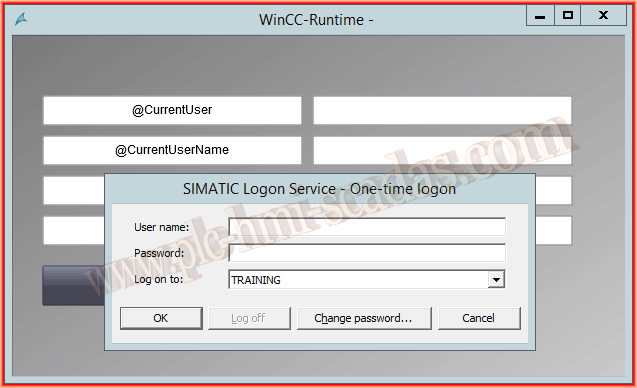
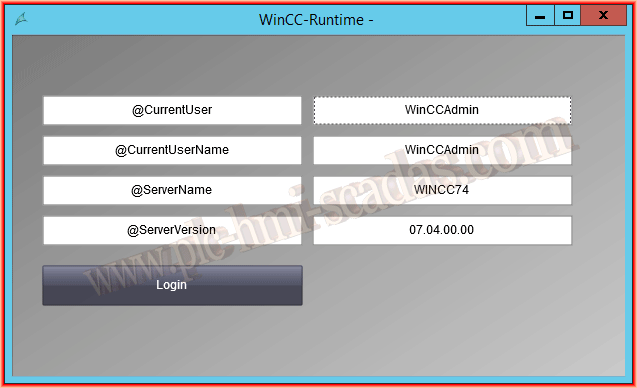
We can now put our WinCC in Runtime, and the screen will automatically appear for us to log into the System. In the following images, it shows how our User logs in correctly and has the permissions we have defined.
June 12, 2016
If you liked it or found it useful, share it :-)