
Send Emails from Vijeo Citect
Send Emails from CitectScada
In this practice, we will send emails from Citect Scada. On the PC where Citect will run, I have made some prior configurations. First of all, configure an email account in Outlook Express; this email account can be any account we have in Gmail, Hotmail, etc., that supports POP. For this example, I have used a Gmail account, and in the following link, you can find a detailed guide on how to configure Outlook Express for a Gmail account.
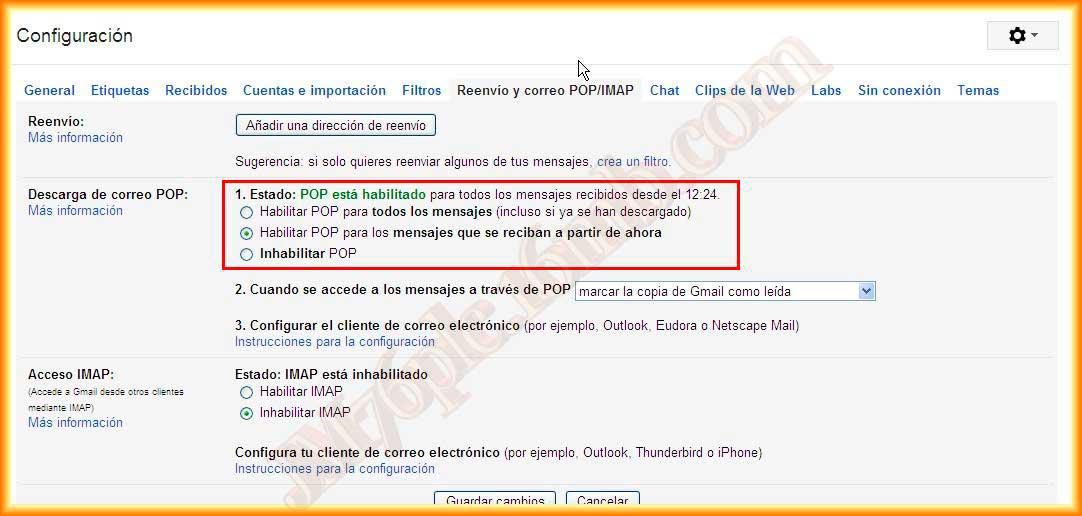
In the Gmail settings, I have enabled POP as can be seen.
Run Internet Explorer -> Tools -> Internet Options, and set Outlook Express as the default email program.
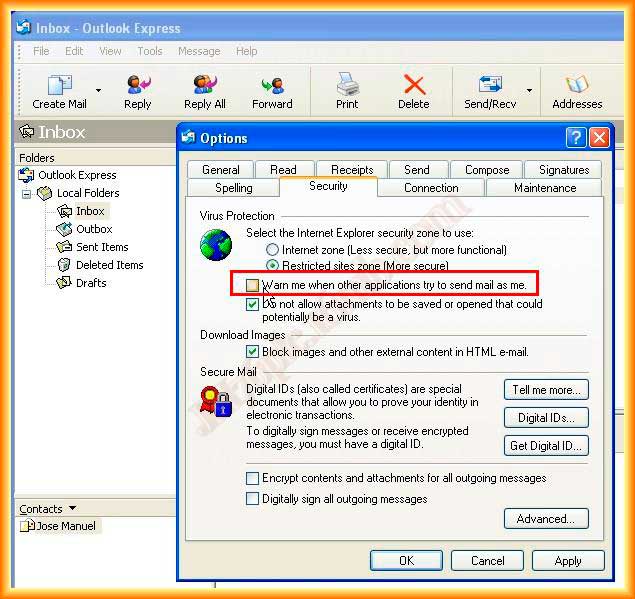
Once Outlook Express is configured, go to Tools -> Options and uncheck the option to Notify me when others ...
These are the prerequisites before configuring a function in Citect.

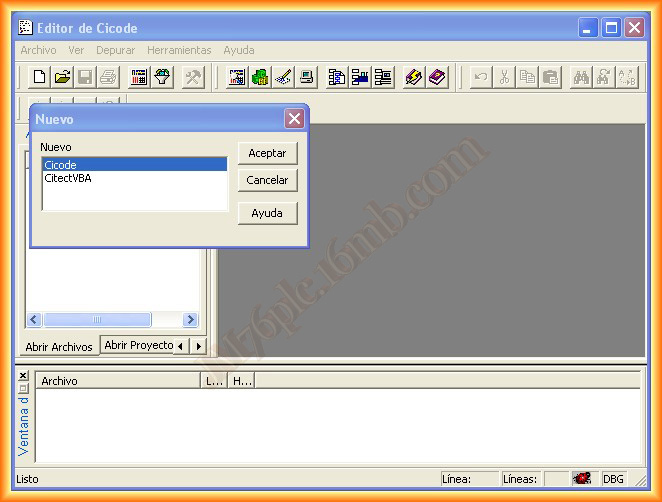
Once our Citect project is open, what I am going to do is create a function that encompasses several predefined functions in Cicode. We click on the icon and open the Cicode editor, create a new one, and a pop-up window appears to select the programming language; we select Cicode.

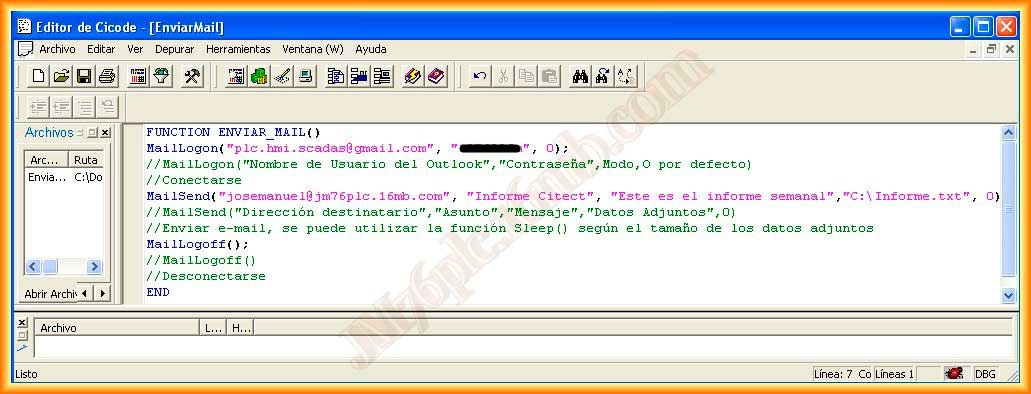
The function I am going to implement does the following: first log in, send the email and attachments if applicable, and then log out. In case you want to send large attachments, it is advisable to intersperse the Sleep(5) function before logging out.

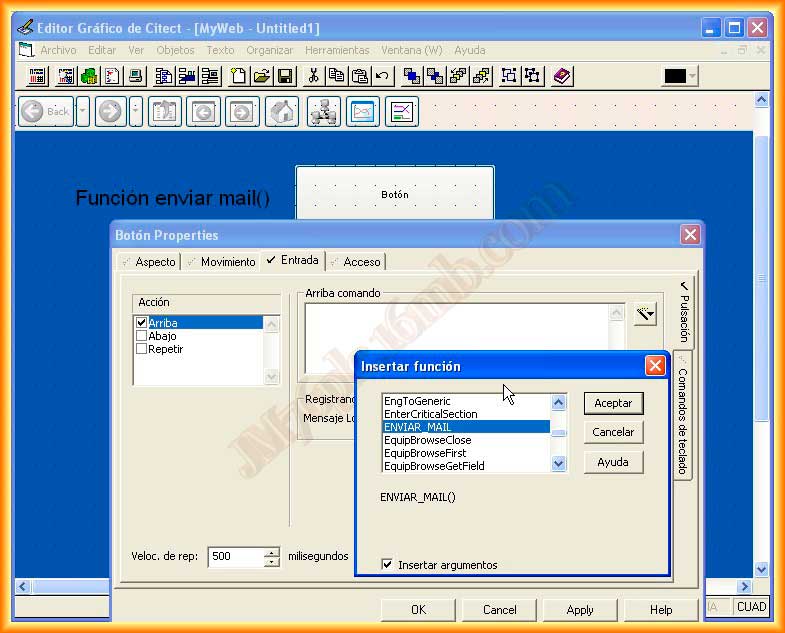
To check that the function executes correctly, I will create a button that, when pressed, sends the email. I create a new page using a predefined template and insert a button, look for the function created earlier, and that's it; the project can now be compiled and executed. Start the Runtime and press the button.

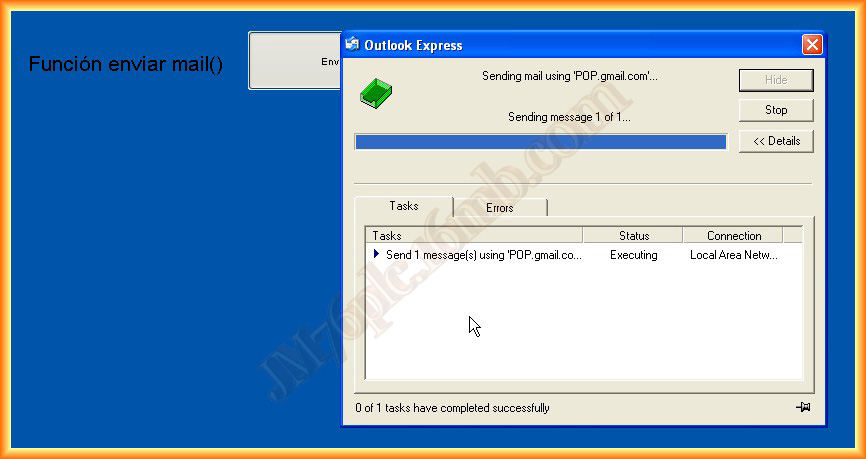
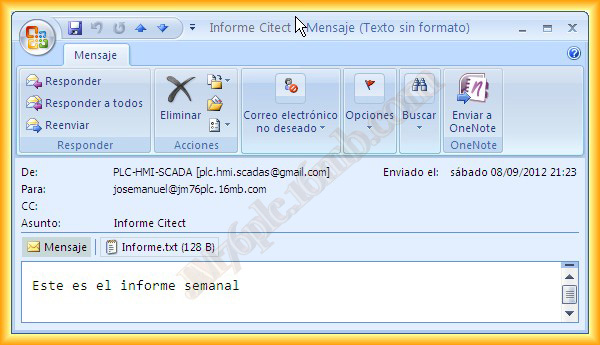
The email has been sent successfully. On my PC, I check the email, and as can be seen, a new message has arrived with the configuration that was made earlier.

September 8, 2012